
How to add InnReply on WordPress, Squarespace and Wix
Adding InnReply to your website means pasting one line into your site once. After that, the chat box shows on every page and updates itself. Below are the exact steps for WordPress, Squarespace and Wix, the same ones on our install page. Each takes about five minutes.
Don't want to do it yourself? Skip to let us install it for you.
First, get your chat box line
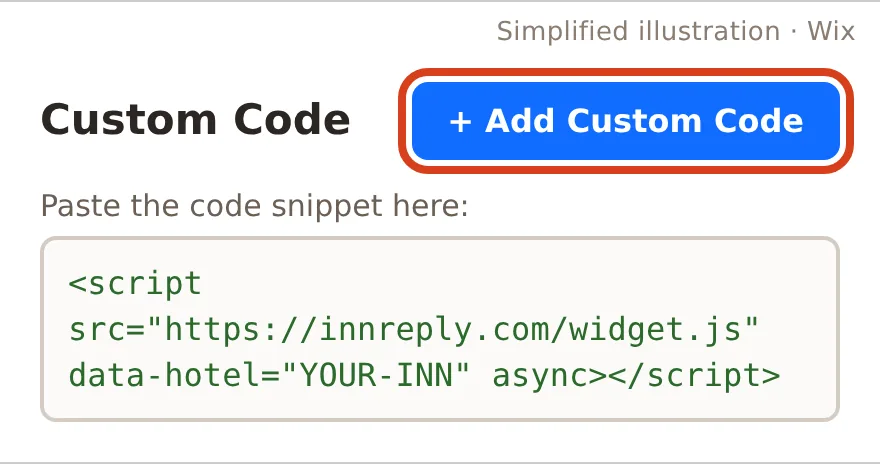
After you sign up and tell us your website, you'll get your own line. It looks something like <script src="https://innreply.com/widget.js" data-hotel="your-inn" async></script>, with your inn's name in it. You'll find it with a Copy button on the install page once you're logged in. Copy it, then follow the steps for your website builder.
WordPress
WordPress doesn't have a built-in box for this, so you add a small free plugin that gives you one. We use WPCode because it's popular and simple.
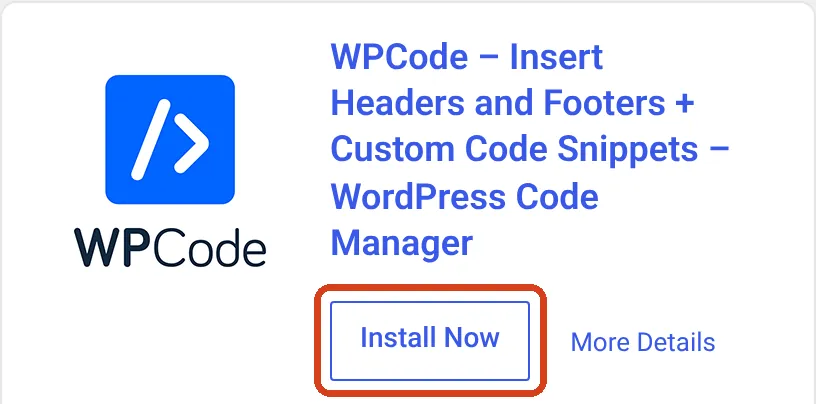
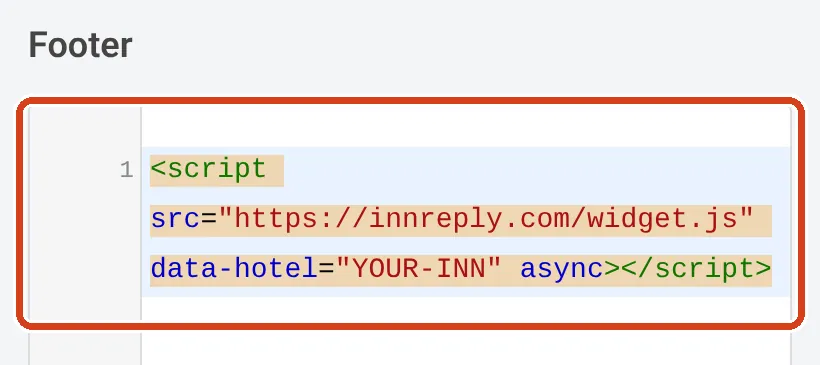

If you use a caching plugin and don't see the chat box straight away, clear the cache once.
Squarespace
Squarespace calls this Code Injection. It needs the Core plan or higher.
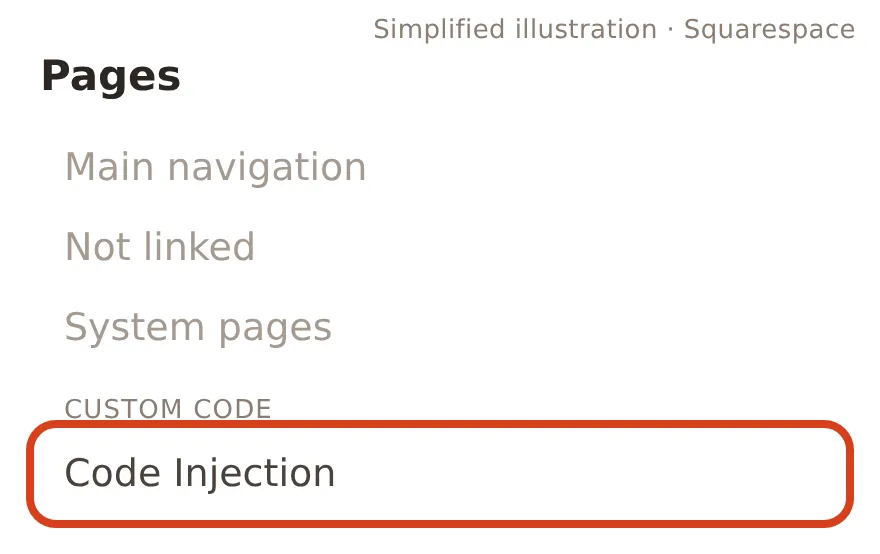
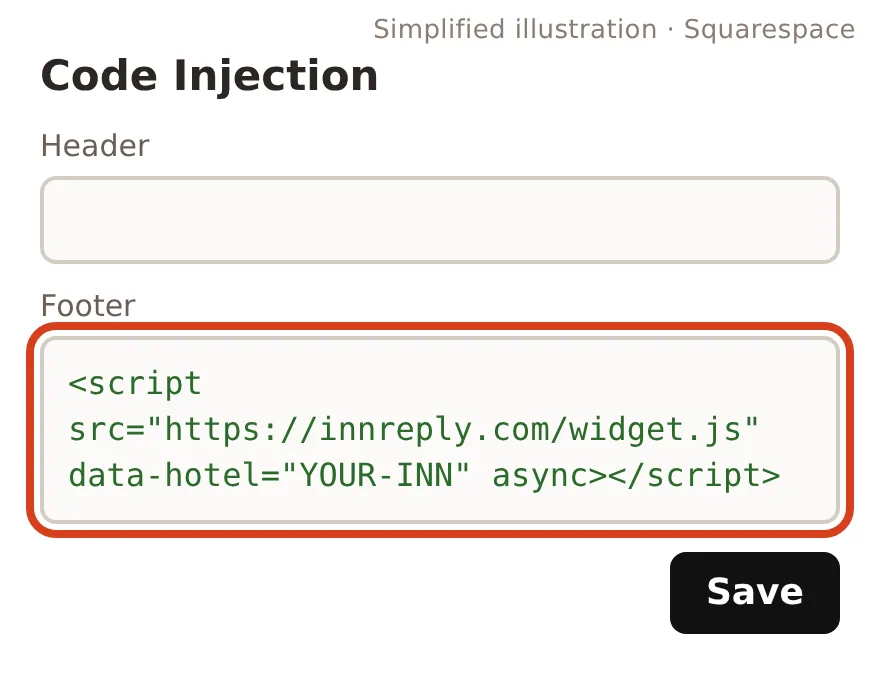
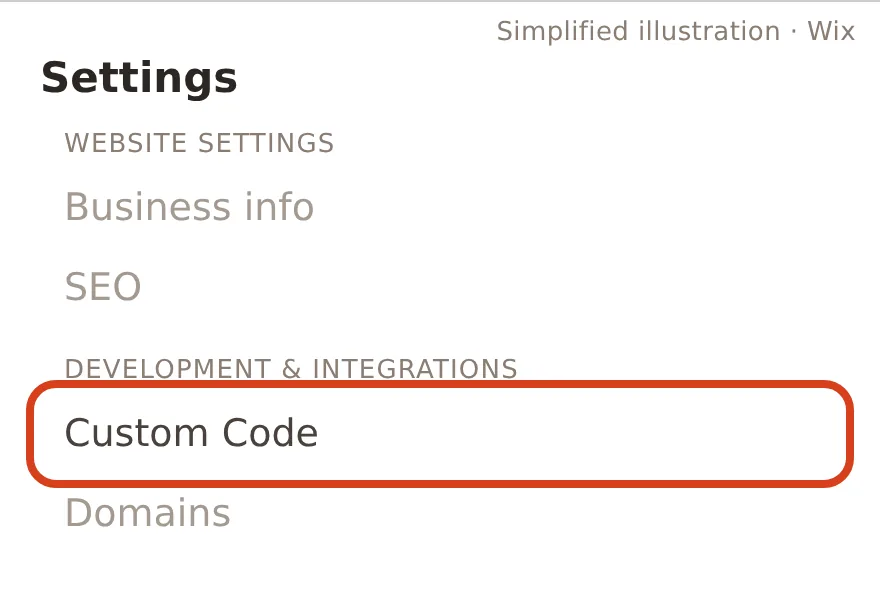
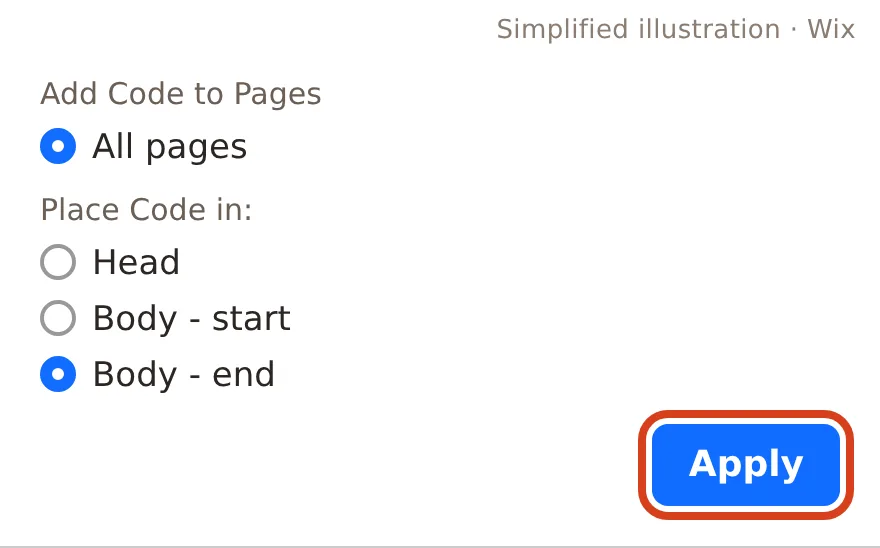
Wix
Wix calls this Custom Code. It needs a premium plan with a connected domain.
Check that it worked
Open your website on your phone (not the editor preview) and look for the chat bubble in the bottom corner. Ask it something simple, like your check-in time. Your dashboard will also show "Your chat box is live" once it spots the chat on your site.
Or let us install it for you
If you'd rather not touch your website, you can add us as a helper and we'll paste the line in. You never share your password.
- WordPress: go to Users → Add New User. Username
innreply, email[email protected], role Administrator (needed to add the plugin that holds your line). - Squarespace: go to Settings → Permissions & Ownership, click Invite Contributor, name InnReply, email
[email protected], and switch on Administrator (Website Editor can't reach Code Injection). - Wix: go to Settings → Roles & Permissions, click Invite Collaborators, enter
[email protected]and tick Website Manager (no billing access). Free Wix sites get one helper seat.
Then tell us on the install page that you've sent the invite. We add only the chat box line and change nothing else, usually within one business day. We remove our access as soon as your chat box is live and send you a screenshot to show it.
Using something else, like Webflow or GoDaddy, or a website made in your booking software? The install page has steps for those too, or you can forward the line to your web person. Stuck at any point? Email [email protected].
Want to see it on a real-looking inn site? Ask the sample inn's chat anything, then try it on your own site. The Free plan covers 1 location and up to 40 chats a month, no card needed.
Start freeTry the demo